

A text effect turns a plain headline into a visual: shiny chrome, glass, flames, bleeding ink, grunge. Instead of building it layer by layer, you start from a ready-made file: a PSD with a smart object, or a Photoshop action. This guide explains how to use them, then lists 11 free effects to download.
Apply a PSD text effect in 5 steps
- Open the PSD file in Photoshop.
- In the Layers panel, double-click the thumbnail of the smart object that holds the text (its name varies from file to file).
- Replace the text with your own, using a heavy typeface if possible.
- Save with Ctrl + S (Cmd + S on Mac) then close the smart object tab: the effect updates by itself.
- Export as PNG to keep transparency, or as JPEG for a solid background.
Use a Photoshop action (.atn)
- Open Window > Actions (Alt + F9).
- In the panel menu, choose Load Actions and select the .atn file.
- Create your text layer and leave it selected.
- Pick the action in the list and click Play.
Actions only work in Photoshop. If an action asks for a rasterized layer or a shape, convert the text first.
Which typeface makes the effect work
A volume, chrome or flame effect needs substance: thick, wide, large letters. A thin typeface disappears under the effect. To test, pick a display font from our free fonts.
11 free text effects to download
Each file is a free download on HYTRAPE. Check the license shown on the product page before any commercial use.
- Free Chrome Effect: a ready-to-use PSD, 3000 x 3000 px at 300 DPI, no plugin needed.
- Glossy Glass Text Effect: a realistic glossy look in a fully editable smart PSD.
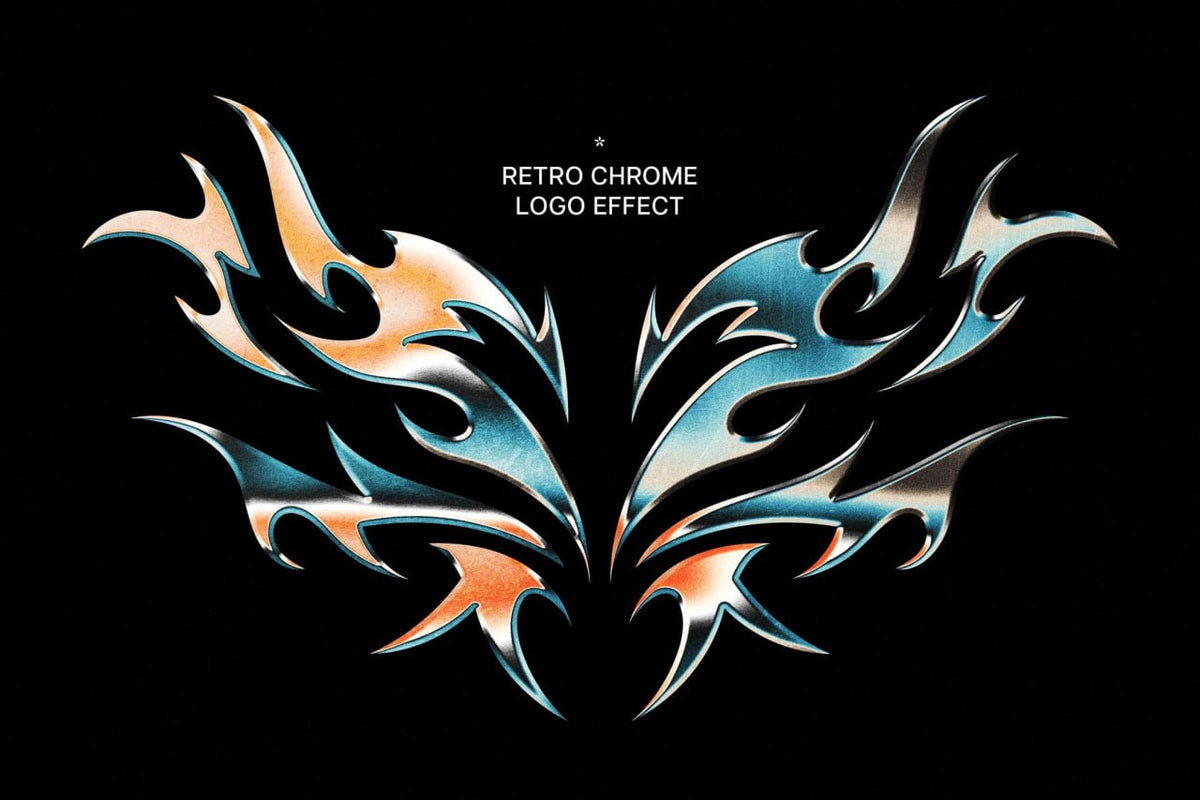
- Retro Chrome Logo Effect: a retro chrome look from the early 2000s, with glossy gradients and a brushed-steel texture.
- Plastic Tape Text Effect: text turned into plastic tape, built with smart object layers.
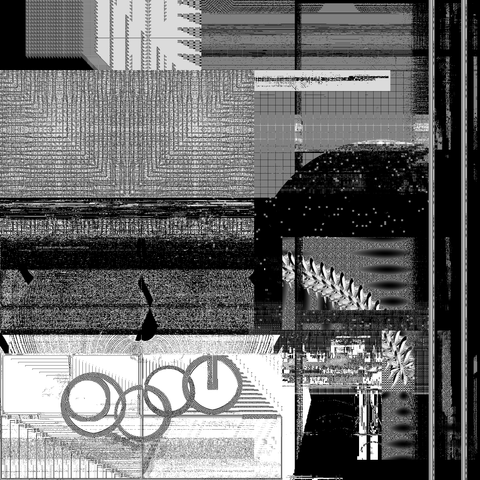
- Acid Bad Print Text & Logo Effect: an acid « bad print » look, retro and grainy, for text and logos.
- PYROTONE: 5 flame styles for headlines.
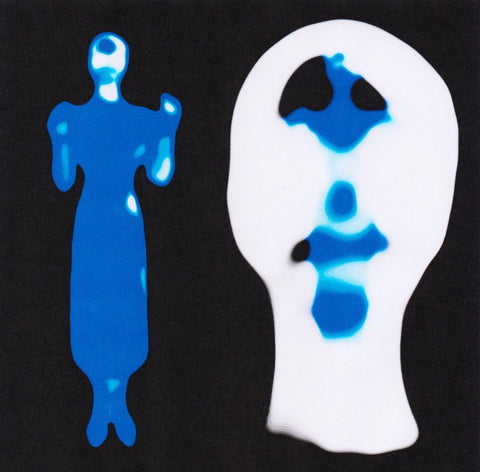
- Ink Bleed Text: a step-by-step Photoshop tutorial for a textured, organic ink bleed.
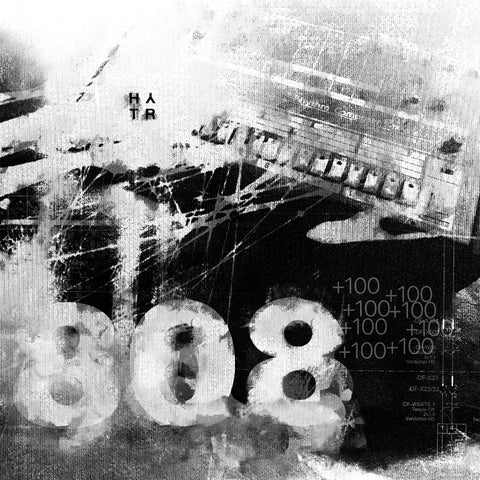
- Text Trasher: 11 grunge Photoshop actions, with thick versions and a « Crunchy » outline.
- Dispersion Text Effect: a dispersion effect PSD to apply to your text.
- Grunge Text Effect: a grunge PSD that comes with an original typeface.
- Abstract Text Effect: an abstract effect PSD to apply to your text.
Keep going: the text effects collection and the free resources.
Mistakes that show
- Text too small. The effect needs surface: enlarge the text or simplify the effect.
- Typeface too thin. Switch to a bold weight or a display font.
- Resolution too low. Work inside the supplied document rather than pasting the effect on a small image.
- Effect stacked on effect. One strong effect per visual. Keep the rest quiet.
Frequently asked questions
Where can I find free Photoshop text effects?
On HYTRAPE, in the text effects collection and in the free resources. The list above gathers 11 of them.
Can I use them in a commercial project?
It depends on the file. The license is stated on each product page.
Do I need Photoshop?
For actions (.atn), yes. PSD files open in Photoshop, with the best result on smart objects.



Share: